
Getting Started with EndNote 101: Install and Set Up Fast
If you’re tired of juggling Word files, PDFs, and random notes, EndNote is the reference manager that pulls everything into one organized place. Let’s get your EndNote 101 setup done quickly and correctly, so you don’t have to fix mistakes later.
EndNote Desktop vs EndNote Online: Where Should You Start?
You have two main options: EndNote desktop (the full software) and EndNote Online (the web version). You can use both together, but you should choose a primary “home base” to start with.
EndNote Desktop (EndNote 21 and similar)
Best if you:
- Are writing a thesis, dissertation, or journal articles
- Need advanced features (smart groups, powerful search, full PDF tools)
- Want to work offline with a fast, local library
- Use Cite While You Write heavily in Microsoft Word
EndNote Online (EndNote Web)
Best if you:
- Need quick access from any computer with a browser
- Have limited storage on your device
- Collaborate a lot and want easy cloud-based sharing
- Don’t need every advanced feature right away
My recommendation:
- If your institution gives you a desktop license – start with EndNote desktop and connect it to EndNote Online for sync.
- If you don’t have a license yet – start with EndNote Online (free account), then move to desktop later. Your references can sync over.
System Requirements and Safe Download Locations
Never download EndNote from random third-party sites. It’s paid software, and unofficial downloads can be unsafe or outdated.
Safe places to download EndNote desktop:
- Official Clarivate EndNote website (the developers)
- Your university library or IT portal, if they provide a licensed copy
- Verified academic software distributors that your institution links to
Typical system requirements (always check the latest on the official site):
- Windows:
- Recent Windows version (e.g., Windows 10 or later)
- At least 4 GB RAM (8 GB is better if your library will be large)
- A few GB of free disk space for the software + your PDF collection
- macOS:
- Recent macOS version supported by the current EndNote release
- Similar RAM and storage expectations as Windows
Quick tips before installing:
- Close Word and other Office programs before installing EndNote.
- Make sure you have admin rights or permission to install software.
- Keep the installer file in a safe place in case you need to repair or reinstall.
Create Your First EndNote Library (Name, Location, and Folders)
Your EndNote library is the core file that holds all your references and links to PDFs. Setting it up properly now will save you serious headaches later.
1. Open EndNote desktop and create a new library
- Go to File → New.
- Choose a clear, long-term name, for example:
- Thesis_Library.enl
- PhD_MainLibrary.enl
- Avoid vague names like NewLibrary.enl or Test.enl.
2. Choose the right location
Do not store your main library in:
- Sync folders like OneDrive, Dropbox, Google Drive, iCloud
- Network drives that disconnect often
- Temporary or external drives that might not be plugged in
Instead, store your .enl library in:
- A local folder on your main drive, such as:
- Documents/EndNote_Libraries/Thesis_Library.enl
EndNote will automatically create a Data folder with the same name as your library (e.g., Thesis_Library.Data). Never separate or manually rename this pair; they belong together.
3. Optional: set up a basic folder structure
Outside EndNote, you can create a simple structure like:
- Documents
- EndNote_Libraries → for your .enl files
- EndNote_Backups → for manual backups of your library
Keep it simple. One main library is usually enough for a thesis or multi-year project.
Turn On EndNote Library Sync So You Never Lose References
Syncing your EndNote desktop library with EndNote Online gives you a cloud backup and lets you access your references anywhere.
1. Create or sign in to your EndNote Online account
In EndNote desktop:
- Go to Edit → Preferences → Sync (on macOS: EndNote → Preferences → Sync)
- Click Sign Up if you don’t have an account, or Sign In if you already do
- Use an email you’ll keep long-term (often your academic email is fine if you’ll have it for several years)
2. Set up sync for your main library
- In the same Sync preferences window:
- Make sure Sync this EndNote library is enabled
- Check Sync automatically if you want it to update in the background
- Click the Sync button (often a small sync icon in the toolbar) to run the first full sync
Important sync tips:
- Only one main library should be synced with your EndNote Online account.
- Always sync before and after working on a second computer.
- Don’t copy your library folder into cloud storage manually; let EndNote handle cloud sync via EndNote Online.
Once sync is on, your references (and, depending on settings, your PDFs and groups) are backed up through your EndNote Online account. If your laptop dies the night before submission, you can still recover your library.
If you do just these steps—install safely, create a clean main library in the right place, and turn on sync—you’ve already done more than many first-time users. From here, you can start importing references and actually let EndNote save you time instead of adding stress.
Importing References into EndNote: Step‑by‑Step Methods
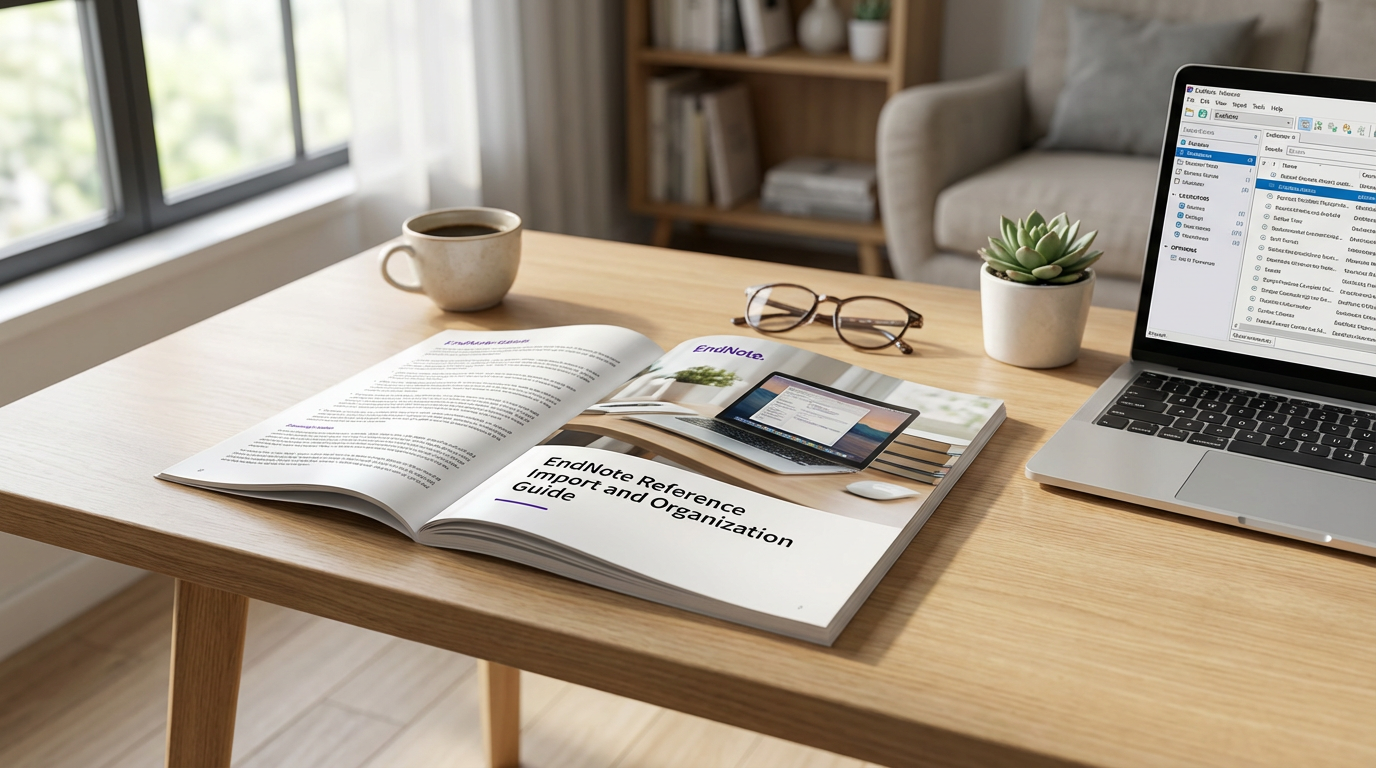
Getting references into EndNote fast is where the real time savings start. Here’s how I handle it step by step, using the tools that actually work in day‑to‑day research.
1. Use direct export from PubMed, Google Scholar, Scopus, and Web of Science
Most major databases talk to EndNote directly. The basic flow is the same everywhere:
- PubMed
- Run your search.
- Select the articles you want.
- Click Send to → Citation manager → Create file.
- Open the downloaded file; EndNote will import it straight into your library.
- Google Scholar
- In Google Scholar Settings → Bibliography manager, choose Show links to import into EndNote.
- After that, click Import into EndNote under each result you want.
- Open the file; it drops into EndNote with all key fields filled.
- Scopus / Web of Science
- Select your records.
- Choose Export → EndNote / RIS / Other reference software.
- Make sure abstract and keywords are ticked.
- Export and open the file with EndNote.
This “direct export” method is the most reliable way to import references into EndNote without broken authors, missing years, or weird symbols.
2. Import PDFs in bulk and let EndNote auto‑fill citation details
If you already have a folder full of PDFs, let EndNote do the heavy lifting:
- In EndNote, go to File → Import → Folder.
- Select your PDF folder and choose:
- Import Option: PDF
- Include files in subfolders: On (if needed)
- Duplicates: Decide whether to allow/discard
- EndNote will use PDF import metadata (DOI and embedded data) to auto‑create full references.
This is perfect when you’ve downloaded papers from multiple sites and don’t want to track where each one came from. It’s not 100% perfect, but for recent journal articles, it’s usually spot on.
3. Use the Capture Reference browser tool
When a site doesn’t offer “Export to EndNote”, I rely on Capture Reference:
- Install the Capture Reference bookmarklet from your EndNote Online account.
- On any article/webpage, click the bookmark.
- EndNote will scrape the metadata and let you:
- Save to EndNote Online.
- Or download a .ris/.enw file to import into your desktop library.
Capture Reference shines on:
- Publisher pages without RIS export
- Blog posts, reports, and policy documents
- Random PDFs hosted on institutional sites
It’s like a backup plan for those “no export button” moments.
4. Add manual references correctly when nothing else works
Sometimes there’s no DOI, no metadata, no export – especially with books, theses, reports, or old PDFs. Then I enter it manually, but cleanly:
- In EndNote, click References → New Reference.
- Choose the correct Reference Type (Journal Article, Book, Thesis, Web Page, etc.).
- Fill in the minimum fields properly:
- Author: Last name, First name (one per line)
- Year
- Title
- Journal / Book Title
- Volume, Issue, Pages, Publisher, as relevant
- DOI or URL if available
- Attach the PDF via the paperclip icon so it stays with the reference.
A correctly entered manual record will behave just like any other when you use EndNote Cite While You Write later.
If you’re combining EndNote with AI or writing tools, it pairs well with AI writing assistants that streamline drafting and editing, while EndNote keeps the references clean and consistent.
Organizing Your EndNote Library to Stay Sane
A messy library is the fastest way to hate any reference manager. Here’s how I set up EndNote so it stays clean, fast, and actually useful.
Set up Groups, Smart Groups, and Group Sets
Think of your EndNote library like a well-structured project folder:
- Group Sets = big buckets
- Examples: PhD Thesis, Teaching, Client Reports, Personal Reading
- Groups = specific projects or chapters
- Under PhD Thesis:
- Lit Review, Methods, Study 1, To Read Next
- Under PhD Thesis:
- Smart Groups = auto-filing based on rules
- Example rules:
- Keywords contains “machine learning” → ML – Core Papers
- Year is after 2026 + Journal contains “Nature” → Recent High-Impact
- Custom field = “urgent” → Urgent to Read
- Example rules:
Smart Groups update themselves as you add or tag new references, which is a lifesaver when you’re tracking multiple papers, blog research, or even data-heavy content like social media analytics projects.
Remove duplicates in one click
Duplicates slow everything down and corrupt your bibliography. Clean them up regularly:
- Go to References → Find Duplicates
- In Preferences → Duplicates, set what EndNote should match on:
- Author + Year + Title (good default)
- Add DOI if you’re in a science-heavy field
- Review quickly, keep the record that:
- Has a PDF attached
- Has complete metadata (journal, volume, issue, pages)
Do this after each big import session so it never turns into a mess.
Use ratings, labels, and custom keywords
EndNote’s metadata fields are your secret search engine:
- Ratings (stars)
- 5★ = must-cite
- 3★ = useful background
- 1★ = marginal / maybe skip
- Labels or Custom Fields
- “Reviewed”, “Key theory”, “Methods example”, “Case study”
- Keywords (keep them consistent)
- Use 3–6 per paper:
- systematic review, content marketing, deep learning, RCT, qualitative
- Use 3–6 per paper:
Then you can filter by star rating, search by keyword, and auto-build Smart Groups from your tags.
Attach and annotate PDFs inside EndNote
Stop hunting for PDFs in random folders. Keep everything in one place:
- Drag-and-drop PDFs onto a reference, or right-click → Attach File
- Turn on Auto Rename PDFs in preferences so files are named AuthorYearTitle.pdf
- Open the PDF in EndNote and:
- Highlight key sections
- Add comments and sticky notes (e.g., “Use this for intro”, “Quote for methods”)
- Search full text across PDFs for specific terms
When your references, full texts, and notes live together in EndNote, writing becomes a lot faster and way less stressful.
Cite While You Write in EndNote to Save Hours
EndNote’s Cite While You Write (CWYW) is the part that actually saves you hours when you’re writing a thesis, journal article, or report.
Install and troubleshoot the EndNote Word / Docs plugin
- Microsoft Word (desktop)
- During EndNote installation, make sure Cite While You Write is ticked.
- After install, open Word → you should see an EndNote tab in the ribbon.
- If it’s missing: Word Options → Add-ins → COM Add-ins → Go and tick EndNote Cite While You Write. Restart Word.
- LibreOffice
- Use Export to RTF from EndNote and open the file in LibreOffice.
- Format citations via Tools → RTF Document Scan in EndNote afterwards.
- Google Docs
- Use the EndNote Web (EndNote Online) add-on from the Google Workspace Marketplace.
- Sign in with your EndNote account and insert references directly into Docs.
If you’re used to managing tools like posting to Facebook in scheduled batches, CWYW feels similar: you automate the boring, repeatable work.
Pick and switch EndNote citation styles (APA 7, MLA 9, more)
- In Word → EndNote tab → Style, choose from APA 7, MLA 9, Vancouver, Chicago, Harvard, or any journal style.
- If your style is missing: EndNote → Edit → Output Styles → Open Style Manager, tick the styles you need.
- You can download extra journal styles from the EndNote website and add them to your styles folder.
Insert citations and build a clean bibliography in seconds
- Place your cursor where you want the citation.
- In Word → EndNote tab → Insert Citation → Find Citation…
- Search by author, title, keyword, select the reference, click Insert.
- EndNote instantly:
- Formats the in‑text citation.
- Updates the reference list / bibliography at the end of the document.
Change something in your library (author, year, title)? Hit Update Citations and Bibliography and EndNote fixes everything.
Edit in-text citations properly (pages, prefixes, suffixes)
Right‑click a citation → Edit Citation(s):
- Pages: add p. 24 or pp. 24–26 in the Pages field.
- Prefix: add text before the citation (e.g. “see also”).
- Suffix: add text after (e.g. “for a full review”).
- Exclude Author / Year:
- Use when you write: “Smith (2020) argued that…” and only want the year in brackets, or vice versa.
EndNote keeps the link to the library while letting you tweak how things look in-text.
Swap citation styles at the last minute
- Need to go from APA 7 to Vancouver for a different journal?
- In Word → EndNote tab → Style, just choose another style.
- EndNote reformats every citation and the whole bibliography in a few seconds.
- No manual retyping, no broken reference list, and if the editor asks for a new style tomorrow, you just switch again.
Use CWYW early in your writing and you’ll avoid the nightmare of rebuilding references the night before submission.
Easy EndNote Features That Save Even More Time
EndNote 101 isn’t just about storing references – a few “easy mode” tools can shave hours off every project if you set them up once and use them daily.
Use Find Full Text to grab PDFs automatically
Let EndNote hunt for PDFs while you focus on reading and writing.
Quick setup:
- Go to Edit > Preferences > Find Full Text
- Add your institution login / OpenURL if your university gives one
- Tick: Web of Science, OpenURL, PubMed (and others available)
How to use:
- Select a batch of references
- Right–click → Find Full Text → Find Full Text
- EndNote searches and auto‑attaches PDFs in the background
Pro tip: Run Find Full Text on new batches weekly so your library quietly fills with full texts.
Try Manuscript Matcher to find journals fast
Manuscript Matcher uses your title, abstract, and references to suggest journals that fit your paper.
Where to find it:
- In EndNote desktop: usually under Tools > Manuscript Matcher
- Or via EndNote Online tools linked to Web of Science (if your institution has access)
What you do:
- Paste your title and abstract
- Select your field / subject area
- Review ranked journals with info like:
- Scope fit
- Impact metrics
- Submission links (where available)
Use it as a starting shortlist, then double‑check each journal’s aims, fees, and indexing.
Share your EndNote library or groups safely
Stop emailing random .ris files. Share directly from EndNote and keep everyone synced.
Sharing options:
| What you share | Best for | How it works |
|---|---|---|
| Entire library | Close co‑authors, research teams | Full sync of references + PDFs |
| Specific groups | Supervisors, students, collaborators | Share only selected project folders |
Steps (desktop):
- Go to File > Share (for full library)
- Or right‑click a Group > Share Group
- Invite with email, set read-only or read & write
Stay professional: don’t share copyrighted PDFs outside what your institution allows.
Set up EndNote backup and recovery properly
Never rely on luck with your thesis or journal article. Back up EndNote like any other business‑critical tool.
Must‑do basics:
- Never store your active library on OneDrive, Dropbox, Google Drive sync folders
- Keep it in a local folder (e.g. C:EndNoteLibrariesMyThesis.enl)
Good backup routine:
- Weekly: File > Compressed Library (.enlx) → save to:
- External drive
- Cloud backup (as a file, not as a live working library)
- Turn on EndNote Online sync as an extra safety net
Use the same mindset you’d use backing up a business website or social media strategy; losing your references hurts just as much as losing a year of audience-building work.
Avoid These Common EndNote Beginner Mistakes
Even smart people mess up EndNote on day one. Fix these four things early and you’ll avoid 90% of beginner pain.
1. Don’t store your EndNote library in the wrong folder
Never put your .enl library or its Data folder in:
- OneDrive / iCloud / Dropbox / Google Drive sync folders
- Network drives or shared server folders
- Random USB sticks
Cloud sync tools corrupt EndNote libraries all the time.
Do this instead:
- Save your library in a normal folder on your local drive, e.g.
Documents > EndNote Libraries > MyThesis.enl - If you want a backup, zip the whole library folder and copy the zip to cloud storage.
This keeps your working library safe while still giving you remote backup.
2. Sync EndNote the right way (and avoid conflicts)
EndNote sync is powerful, but only if you treat one library as your master.
Basic rules:
- Use one EndNote library per EndNote Online account
- Turn sync on in only that main library, not multiple different libraries
- Let sync finish before you:
- Close EndNote
- Shut down your laptop
- Open EndNote on another device
If sync gets weird (duplicates, missing refs):
- Stop syncing
- Pick the most complete library as the master
- Use “Sync” settings to reset sync from this library and overwrite the online version
3. Keep your EndNote group structure simple at the start
Overcomplicated group trees are why people “lose” references.
When you’re new, try this:
- One Group Set per big project (e.g. “PhD Thesis”, “Systematic Review”)
- Inside each project, a few clear groups, such as:
- “To Read”
- “Core Papers”
- “Methods”
- “Background”
- Add Smart Groups later when you know your keywords and tags
Start simple, then refine. You can always add more structure; cleaning up chaos is harder.
If you’re also organizing research ideas or blog drafts, a basic tag structure like you’d use for planning consistent blog content works just as well for EndNote groups and keywords.
4. Always update Cite While You Write after system changes
EndNote Cite While You Write (CWYW) in Word is fragile after:
- Major Word updates
- macOS / Windows upgrades
- Switching between Word 32-bit and 64-bit
- Installing new Office versions
If citations disappear or the EndNote tab is gone:
- Open EndNote → Help → Check for Updates
- Reinstall or repair the Word plugin / Cite While You Write
- In Word, check Add-ins and re-enable the EndNote add-in if it’s disabled
- If needed, reinstall Office first, then reinstall EndNote so CWYW hooks correctly
Fix these four areas once, and EndNote turns from “annoying” into a fast, stable part of your daily research workflow.
Daily EndNote Workflow: From Messy Sources to Finished Chapter
Here’s a simple 30‑minute EndNote workflow I use to go from random links and PDFs to a clean, formatted bibliography.
1. 5–10 minutes: Search and collect
- Run your search in PubMed, Google Scholar, Scopus, or Web of Science.
- Use direct export to EndNote wherever possible.
- For random PDFs, drag them into EndNote so PDF import metadata can auto-fill the details.
- Use the Capture Reference browser tool for pages that don’t support direct export.
2. 5–10 minutes: Organize and clean
- Drop new references into a project Group or Smart Group (e.g. “Thesis – Literature Review”).
- Run Remove Duplicates so you don’t double‑cite the same paper.
- Add quick keywords, ratings, or labels (e.g. “core theory”, “method”, “maybe”) to keep your thinking clear.
If you’re building a long‑term research project, this is the same discipline you’d use to grow a loyal readership or client base, just like you’d structure content and engagement in a focused way on a site such as Boost Your News.
3. 5–10 minutes: Read, annotate, and cite
- Open PDFs inside EndNote, highlight key quotes, and add notes you’ll reuse in writing.
- In Word or Google Docs, use Cite While You Write to drop citations as you go.
- Keep your document in your target style (APA 7, MLA 9, Vancouver, etc.), but don’t stress—EndNote can switch styles later in a few clicks.
4. Final 2–3 minutes: Generate your bibliography
- At the end of your writing session, let EndNote auto-generate the bibliography.
- Scan for oddities (missing page numbers, capitalization) and fix them in EndNote, not in Word—so they stay fixed forever.
Use this exact EndNote workflow for everything: short papers, thesis chapters, and journal articles. Once it becomes habit, your references stop being a mess and start working like a reusable research asset you can plug into every new project.