The Hidden Toll of Citation Overload
If you’re spending more time fixing citations than writing, your research workflow is quietly bleeding productivity.
Common citation pitfalls draining your time
Most researchers I work with struggle with the same issues:
- Manual errors: Typos in author names, missing page numbers, inconsistent dates, and styles that keep “mysteriously” changing right before submission.
- Scattered PDFs: Articles live in Downloads, email attachments, cloud folders, and random desktop piles—impossible to search, easy to lose.
- Version-control chaos: Multiple drafts with slightly different reference lists, co-authors editing their own copies, and nobody sure which version is final.
- Copy‑paste fatigue: Manually transferring data from databases into your document, then reformatting everything to match journal guidelines.
None of this is “real research.” It’s unpaid admin.
The real cost: delays, burnout, and lost breakthroughs
Citation overload doesn’t just annoy you—it slows your career down:
- Weeks added to thesis and manuscript timelines because formatting takes longer than writing.
- Mental fatigue from constantly double-checking references instead of thinking deeply about your argument.
- Abandoned ideas and missed insights because you can’t quickly find or connect the right sources when it matters.
When your brain is stuck in citation clean-up mode, it’s not available for original thinking.
How EndNote ends the chaos
This is exactly why I rely on EndNote, a reference management software with decades of trust behind it and a powerful new AI layer built for how you actually work today.
EndNote helps you:
- Centralize everything: Store references, PDFs, notes, and annotations in one organized, searchable library.
- Automate the boring parts: Use AI-powered tools to import references from databases, organize research PDFs, and automate bibliography creation in seconds.
- Protect your focus: Reduce citation errors, avoid version-control nightmares, and keep your attention on writing and discovery—not formatting.
Instead of wrestling with scattered files and inconsistent styles, you let EndNote handle the heavy lifting. You get back your time, your energy, and your ability to do the work only you can do.
Why EndNote Stands Out in a Sea of Reference Managers
When people ask me why I push EndNote over other reference management software, it comes down to one thing: it actually scales with serious research work instead of collapsing under it.
Core Differentiators That Actually Matter
EndNote is built for heavy, long-term projects, not just one-off essays:
- Deep Web of Science integration
- Pull high‑quality references directly from Web of Science.
- Explore citation networks and related papers without bouncing between tools.
- Keep your literature review aligned with top‑tier, indexed research.
- Unlimited library scaling
- Store tens of thousands of references and research PDFs in a single EndNote library.
- Sync across devices (desktop, laptop, maybe a shared machine) without worrying about caps.
- Use powerful search, filters, and smart groups to slice through massive collections in seconds.
- Serious citation formatting tools
- Thousands of journal styles ready to go.
- One‑click switching between formats for submissions, preprints, and internal drafts.
- Rock‑solid Cite While You Write integration so you can automate bibliography creation directly in Word.
2026 AI Features That Kill Busywork
EndNote’s new AI‑powered citation assistant tools are where the real time savings show up:
- Research Assistant (AI suggestions)
- Get recommended articles based on your current library and topic.
- Surface “hidden” relevant papers you might miss in normal searches.
- Great for thesis work or multi‑year projects where you can’t afford gaps.
- Find Full‑Text
- Let EndNote automatically search for and download full‑text PDFs via your institution access or open sources.
- Attach PDFs to the right reference without manual hunting.
- Perfect when you’re doing heavy literature reviews and pulling dozens of papers at once.
- Cite from PDF
- Highlight text in a PDF and add a citation directly, without switching screens.
- Auto‑extract metadata and create references from the document itself.
- This massively speeds up note‑taking and academic writing efficiency when you’re deep in reading mode.
These kinds of AI helpers are the same “force multipliers” you see with modern AI content tools used by marketers—but tuned for researchers instead of social posts.
Versatile for Solo Researchers, Teams, and Enterprises
EndNote works differently depending on how you work:
- Solo researchers / students
- Streamline thesis citations and automate your bibliography creation.
- Keep all your PDFs, annotations, and notes in one searchable library.
- Ideal if you’re juggling classes, a thesis, and maybe a side project.
- Research teams and labs
- Use shared libraries for collaborative reference sharing.
- Everyone stays synced on the same set of sources and citation styles.
- Faster draft reviews because nobody is manually fixing references.
- Enterprises and institutions
- Centralized license management and support.
- Standardized reference workflows across departments and research units.
- Integrates well with existing databases, proxies, and IT policies.
If you’re serious about research workflow optimization, EndNote isn’t just “another reference manager.” It’s the backbone you build the rest of your research process on.
Step-by-Step: Building Your EndNote-Powered Research Engine
Quick start: Download, install, first library
Let’s get your EndNote-powered research engine running fast:
- Download & install
- Go to the official EndNote site and download the latest version for Windows or macOS.
- Install with default options unless your IT department tells you otherwise.
- Create your first EndNote library
- Open EndNote → File → New.
- Save your .enl library in a local folder (not directly in OneDrive/Dropbox/Google Drive) to avoid corruption.
- EndNote will create a matching Data folder automatically. Always keep the .enl file and Data folder together.
- Turn on multi‑device sync
- Create or log into your EndNote online account from within the app.
- Go to Edit → Preferences → Sync (or EndNote menu on Mac) and sign in.
- Enable automatic sync so your references, groups, and PDFs stay aligned across your laptop, home PC, and office machine.
This is the same mindset you’d use when you set up a system to never run out of ideas for blogging—you want a repeatable, low-friction workflow from day one.
Importing and organizing references
Now we build your reference management software into a real research hub.
1. Import references from databases
- From Web of Science, PubMed, Scopus, Google Scholar, etc.:
- Use Export / Send to / Cite manager and choose EndNote or RIS.
- Open the exported file; EndNote will pull in all citation data automatically.
- From PDFs on your computer:
- Drag and drop PDFs directly into EndNote.
- Use File → Import → File with import option PDF for bulk imports.
2. Auto-name PDFs and keep them tidy
- Go to Preferences → PDF Handling:
- Turn on Automatic PDF Import for a “watch folder”.
- Set PDF naming rules like: Author – Year – Journal – Title.
- Result: every new article you download lands in EndNote, correctly named and attached to the right reference.
3. Use smart groups and folders
- Create Groups for:
- Specific papers or chapters
- Client projects or grant proposals
- Teaching vs. research vs. personal learning
- Set up Smart Groups (smart folders) with rules like:
- Keyword contains “systematic review”
- Year is 2026–2026
- Author includes “Nguyen”
- EndNote automatically files new references into these smart folders as your library grows.
Advanced organization hacks
Here’s where your academic writing efficiency really jumps.
1. Keyword tagging that actually works
- Use the Keywords field to add:
- Methods: “RCT”, “qualitative”, “meta-analysis”
- Themes: “climate adaptation”, “digital health”
- Status: “to-read”, “cited”, “include”, “exclude”
- Build Smart Groups around these tags to automate your research workflow optimization.
2. Searchable annotations on PDFs
- Open PDFs in EndNote’s built-in viewer.
- Use:
- Highlights for key arguments and methods
- Sticky notes for your own takeaways or next‑step tasks
- All notes are searchable:
- Use the search bar to find phrases inside annotations and PDF text.
- Perfect when you’re trying to remember “that one paper where they tested X in Brazil”.
3. Automated reference updates
- Right‑click a reference → Find Reference Updates.
- EndNote fetches:
- Updated page ranges, DOIs, and issue numbers
- Corrected titles or author names
- Turn on Find Full Text (with your institutional login) to automatically pull in full‑text PDFs and attach them to existing references.
With these simple habits, EndNote moves from “citation formatting tool” to a full research engine that keeps your PDFs organized, automates bibliography creation, and keeps your references clean with minimal effort.
Mastering Citations: From Insertion to Polished Output with EndNote
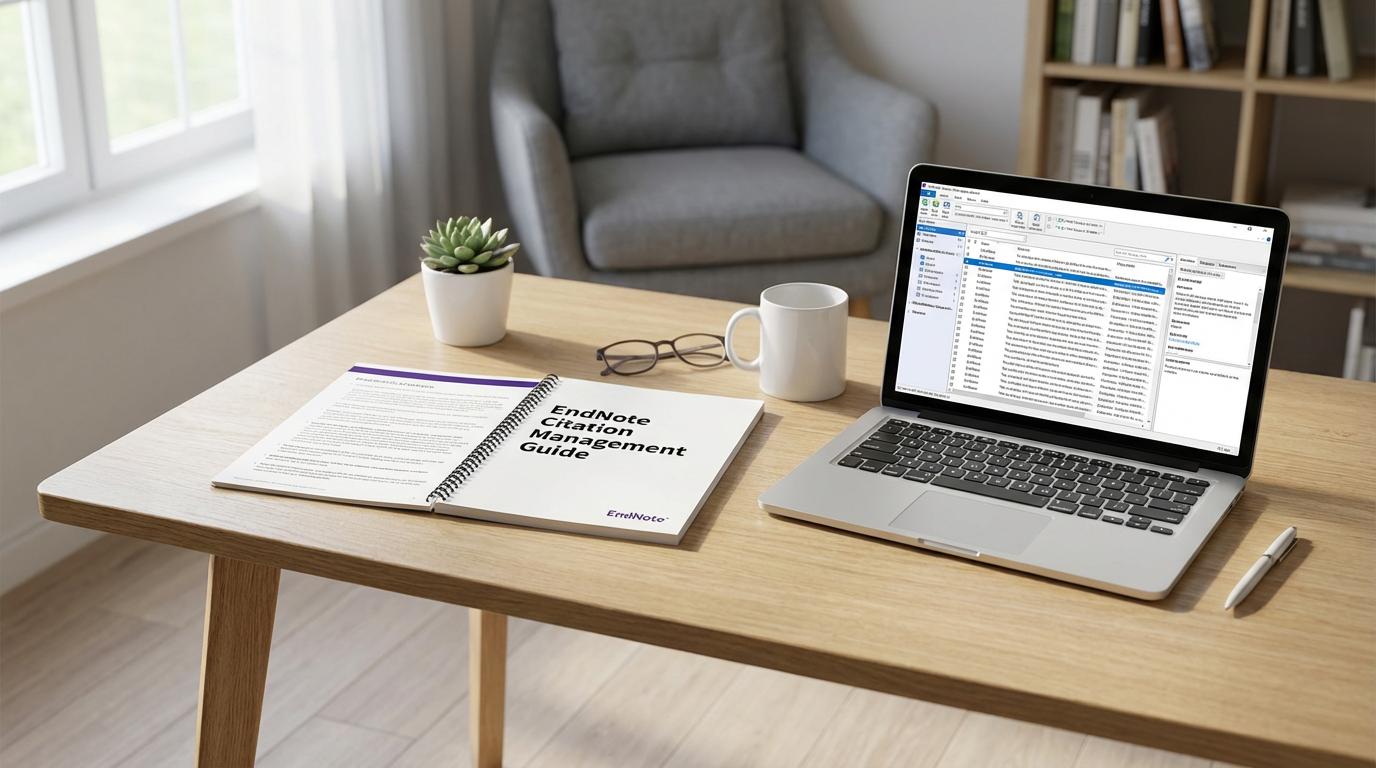
When I say “stop worrying about citations,” this is what I mean in practice.
Using Cite While You Write in Word
EndNote’s Cite While You Write plugin is where your academic writing efficiency jumps up a level:
- Insert citations as you type
- Click “EndNote” in Word → “Insert Citation” → search by author, title, keyword.
- Pick the reference, hit Insert, and EndNote drops an in‑text citation and auto‑builds your bibliography.
- Switch citation styles in one click
- Need APA for class, then Vancouver for a journal?
- Just change the style in the EndNote tab and your entire document—in‑text citations + reference list—updates in seconds.
- Batch updates and final clean-up
- Use “Update Citations and Bibliography” before submission to refresh everything.
- Great for long theses, multi-chapter reports, and journal submissions with strict citation formatting tools.
Fixing Duplicates, Footnotes, and Common Issues
EndNote cuts citation errors that usually creep in with manual work:
- Remove duplicate references
- Use “Find Duplicates” in your library and merge or delete safely.
- This keeps your library clean and avoids repeated entries in the bibliography.
- Handle footnotes and special cases
- For humanities or legal work, you can insert citations into footnotes directly from Cite While You Write.
- Adjust output style settings to control ibid., short titles, or repeated references.
- AI-powered journal matching
- Use EndNote’s journal submission prep tools to compare your manuscript and reference list with target journals.
- AI-driven journal matching helps you pick journals that fit your topic and citation network, instead of guesswork.
Collaboration and Shared Libraries
For teams and co-authors spread across labs, cities, or time zones, EndNote’s collaborative reference sharing is a lifesaver:
- Share your library online
- Invite collaborators by email and give them read-only or full edit access.
- Everyone works from the same reference management software instead of emailing random RIS files.
- Real-time tracking and version control
- Changes sync across devices; you see new references and notes as they’re added.
- Annotations and tags stay attached to the shared library, so you don’t lose context.
- Merging co-author edits in Word
- Multiple authors can insert citations in the same document using the shared library.
- At the end, run a full update in Cite While You Write to standardize styles and fix conflicts before submission.
If you’re also building a long-term content or research-driven platform, the same principles of clean structure, repeatable workflows, and shared systems that drive EndNote success are the ones I use when growing an audience-focused site; for example, content teams use similar discipline to build a loyal blog audience with consistent workflows.
Real-world wins with EndNote
Case studies: time saved, headaches gone
Across our global user base, the pattern is the same: once people move their reference management into EndNote, their entire research workflow speeds up.
- A PhD student in biomedical science cut her literature review time by ~40% by using Find Full-Text, smart groups, and Cite While You Write instead of manual citation formatting tools.
- A policy research team in Europe moved from spreadsheets and shared folders to a shared EndNote library. Result: one source of truth for references, no more “which version is correct?” fights, and days saved per project.
- An engineering professor in Asia shifted a decade of scattered PDFs into a single EndNote library setup with searchable annotations. He now finds past sources in seconds and reuses them across multiple grant proposals.
Quantified benefits: what actually changes
When people fully adopt EndNote as their main reference management software, they usually see:
- Faster writing cycles – automatic bibliography creation and instant style switching cut formatting time from hours to minutes.
- Fewer citation errors – no more broken DOIs, missing page numbers, or inconsistent formats; automated reference updates keep records clean.
- Deeper citation network exploration – tight links with Web of Science help users spot key papers, related articles, and citation trails they would have missed.
In plain terms: more time thinking, less time fixing references.
User feedback: focus and innovation back on track
What I hear most often from researchers, students, and teams worldwide:
- “EndNote killed my citation anxiety. I just write and let it handle the rest.”
- “Our international team can finally share and sync references without version chaos.”
- “Switching journals used to be a nightmare. Now it’s a two-click style change.”
By streamlining thesis citations, journal submission prep, and everyday academic writing, EndNote frees up the mental space you need to focus on the hard part: doing the actual research and pushing new ideas forward.
Overcoming Hurdles: FAQs and Pro Tips for EndNote Newbies
Even if you’re tech‑savvy, a new reference management software can feel clunky at first. Here’s how I’d smooth out the EndNote learning curve so you actually ship your thesis, article, or grant instead of wrestling with settings.
Can I use EndNote offline?
Yes. Your EndNote desktop library is fully usable without internet:
- Work offline: Add references, annotate PDFs, and insert citations in Word as usual.
- Sync later: Once you’re back online, hit Sync to update EndNote Web and your other devices.
- Travel tip: Before a trip, sync your library and download key PDFs so you’re not stuck if Wi‑Fi is bad.
How hard is it to migrate my old references?
Moving from another reference management tool is annoying once, then done:
- From Mendeley/Zotero/RefWorks
- Export as RIS, BibTeX, or EndNote XML from your old tool.
- In EndNote: File → Import → File → choose the correct import option.
- Keep your PDFs
- Make sure the export includes attachments, or
- Drag existing PDF folders straight into EndNote for auto‑import + metadata lookup.
- Check for duplicates: Use References → Find Duplicates to clean up the merged library.
What’s the real learning curve like?
You don’t need to know everything. Focus on the 20% that saves 80% of your time:
- Day 1 skills:
- Create a library
- Import from your main database (PubMed, Scopus, Web of Science, Google Scholar)
- Install Cite While You Write and insert citations in Word
- Week 1 skills:
- Use Groups / Smart Groups
- Tweak a few citation styles (APA, Vancouver, journal‑specific)
- Run Find Full Text to pull PDFs
- Later, when needed: shared libraries, advanced filters, custom output styles
If poor sleep is wrecking your focus while you learn new tools, fixing your basics with a few proven sleep habits often helps more than another productivity hack.
Using EndNote with Overleaf
If you write in LaTeX or collaborate globally, EndNote still fits:
- Export a BibTeX file
- In EndNote: select references → File → Export → choose *BibTeX (.bib)**.
- In Overleaf: upload the .bib file and call it in your .tex with bibliography{yourfile}.
- Keep it updated
- After adding new refs, re‑export the BibTeX and upload again.
- Use a consistent filename so Overleaf picks it up with no changes to your LaTeX file.
Integrating EndNote with Scopus and other databases
You should never be re‑typing citations from databases:
- Scopus
- Run your search → select results → Export → choose RIS / EndNote format.
- Open the file; EndNote will usually auto‑import.
- Other databases (PubMed, Web of Science, EBSCO, etc.)
- Look for “Export to EndNote” or RIS/BibTeX options.
- Map each database to the right Import Filter in EndNote if needed.
- Institutional proxies
- When off‑campus, log in through your university library portal.
- This ensures Find Full Text and direct database exports still see your institutional subscriptions.
Can I use EndNote through my university proxy?
Yes. A couple of checks:
- On campus or VPN: EndNote usually finds full text via your institution automatically.
- Off campus:
- Use the library’s remote access / proxy link, then open databases in that session.
- In some cases, your IT or library can help you configure OpenURL / authentication inside EndNote to match your local setup.
Essential maintenance: backups and license sanity
Protect your work like it’s your thesis or client deliverable—because it is:
- Back up the right way
- Don’t just copy the .enl file.
- Use File → Compressed Library (.enlx) to create a single backup that includes PDFs.
- Store it on cloud storage (OneDrive, Google Drive, Dropbox) or an external drive.
- Avoid corruption
- Don’t keep your live library on a syncing folder (e.g., inside Dropbox).
- Keep the working library on your local drive; only backups go to the cloud.
- License checks
- Note your serial number / login email somewhere safe.
- Before a renewal or institutional license change, export a compressed backup so you can migrate smoothly if needed.
Getting help: community and support
When you get stuck, don’t waste a weekend:
- Official resources:
- Built‑in help, knowledge base, and video walkthroughs from the EndNote team.
- Community forums & Q&A:
- Power users often share .ens styles, import filters, and fixes for niche journals.
- Local support:
- Many universities have a library EndNote specialist who can sit down with you or run group workshops.
Once you’ve got these basics down—offline use, clean migration, Overleaf/Scopus integration, and a solid backup habit—EndNote stops being “yet another tool” and becomes the quiet engine that keeps your research workflow running in the background.